Overview
iCoderAgent for macOS is a native Mac app built around the same coding agent as the iOS app. You describe a task in plain language; the agent plans, writes and edits files, runs real commands, reads the results and iterates until the task is done.
Everything runs locally on your Mac: the agent, your projects, the shell, builds, tests, the iOS Simulator and notebooks. No companion app or remote host is needed to build anything. The optional Companion is only for driving another machine from this one (see Settings → Remote).
It is bring-your-own-key (BYOK): you connect your own account with Anthropic (Claude), OpenAI, xAI (Grok) or another provider and the app uses that key directly. Keys are stored in the macOS Keychain and sent only to the provider you chose.
Install & update
- Download iCoderAgent.dmg.
- Open the DMG and drag iCoderAgent to Applications.
- Launch it from Applications. The app is Developer ID signed and notarized, so Gatekeeper opens it normally.
Requirements: macOS 14 or later, Apple silicon or Intel. Xcode is only needed for the Simulator & Devices panel and Apple projects; everything else works with the tools already on your Mac.
Updating
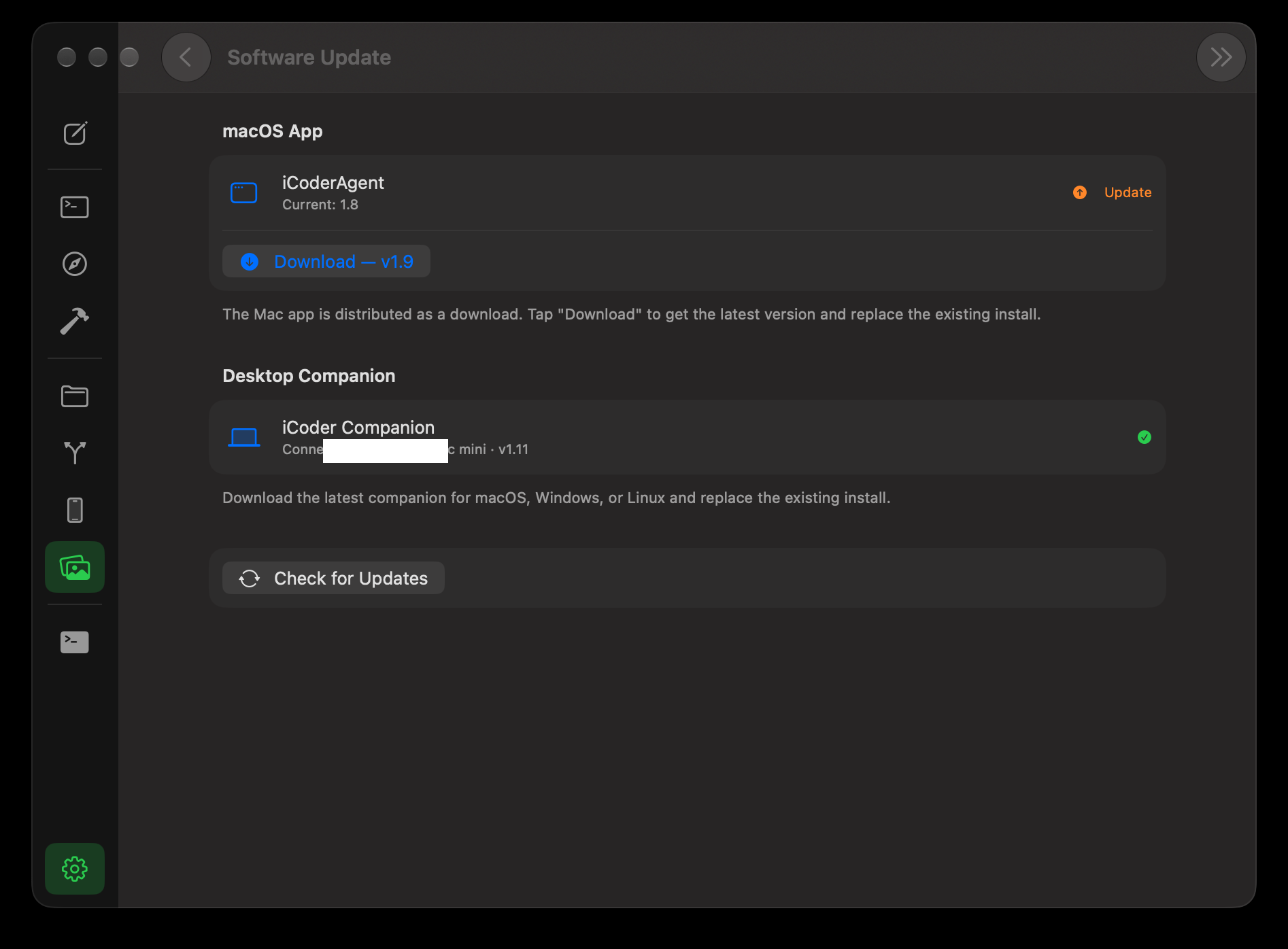
Settings → General → Software Update checks icoderagent.com for a newer version and offers the new DMG. Download it and replace the app in Applications. The same screen shows the installed Companion version (if you use one) and offers Companion downloads for macOS, Windows and Linux.
Your first agent run
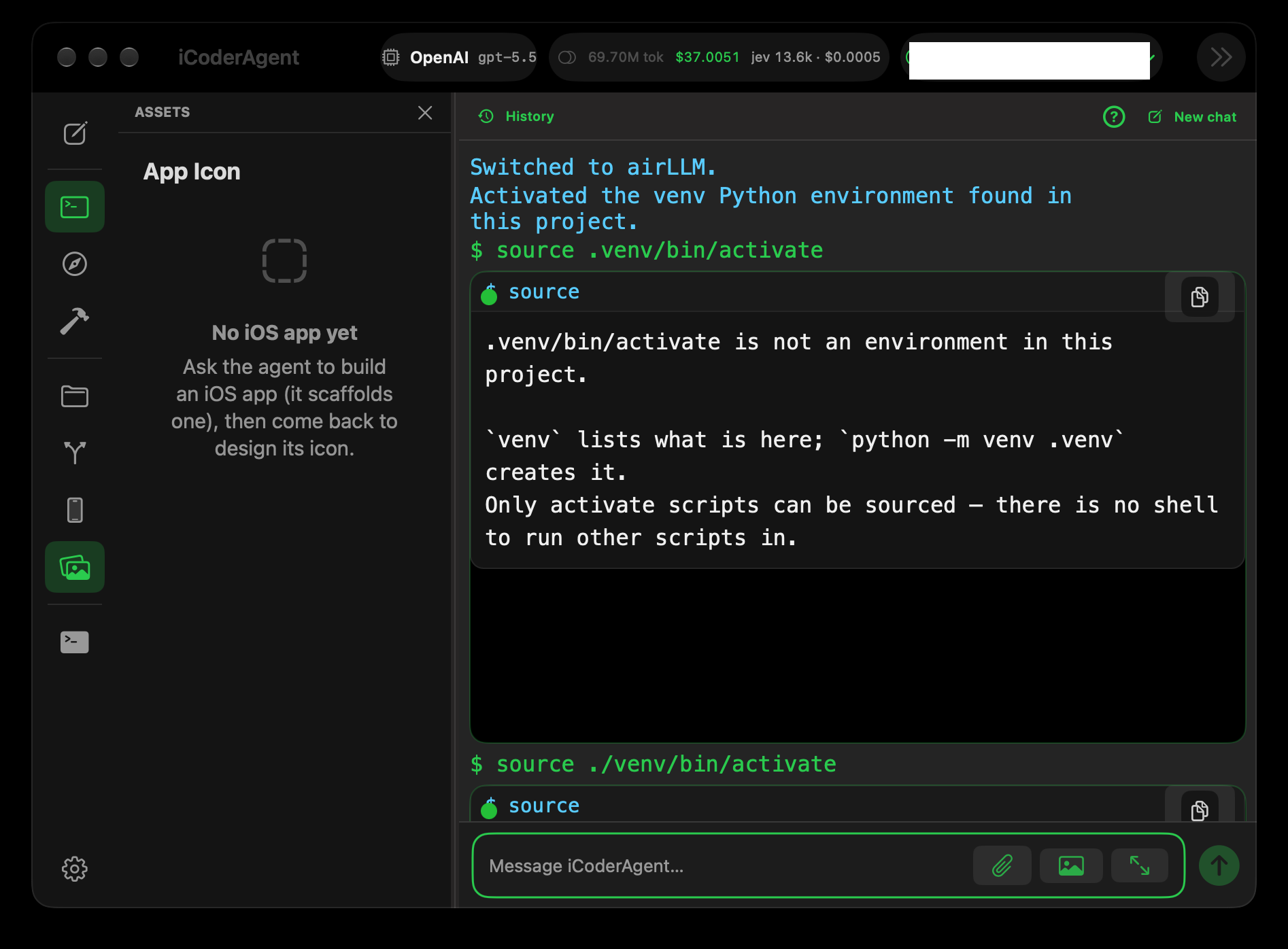
- Open Settings → AI Provider, choose a provider (e.g. Claude) and paste your API key. It is saved to the Keychain.
- Open the Files panel and create or open a project (⇧⌘N / ⌘O). Pick a folder on your Mac; that folder is the project.
- In Chat, type a task, e.g.
build a tip calculator web page. - Watch it work: it writes files, runs commands in the project folder and shows the result. Use Preview to see HTML it builds.
Type help (or press ⌘?) for the full list of commands and tools.
Account & plans
Sign in from the account button at the bottom of the left rail (Sign In / Create Account) with email and password. Sign in with Apple is available on iOS only.
Free plan
The free plan gives you 10 conversations, one project, the web template only, and no Companion connection. Your own API key is still required — the app never resells model usage.
Buying a plan
- Buy a plan at icoderagent.com/pricing.html. Payment is through Razorpay in India and Lemon Squeezy elsewhere.
- A license key arrives by email.
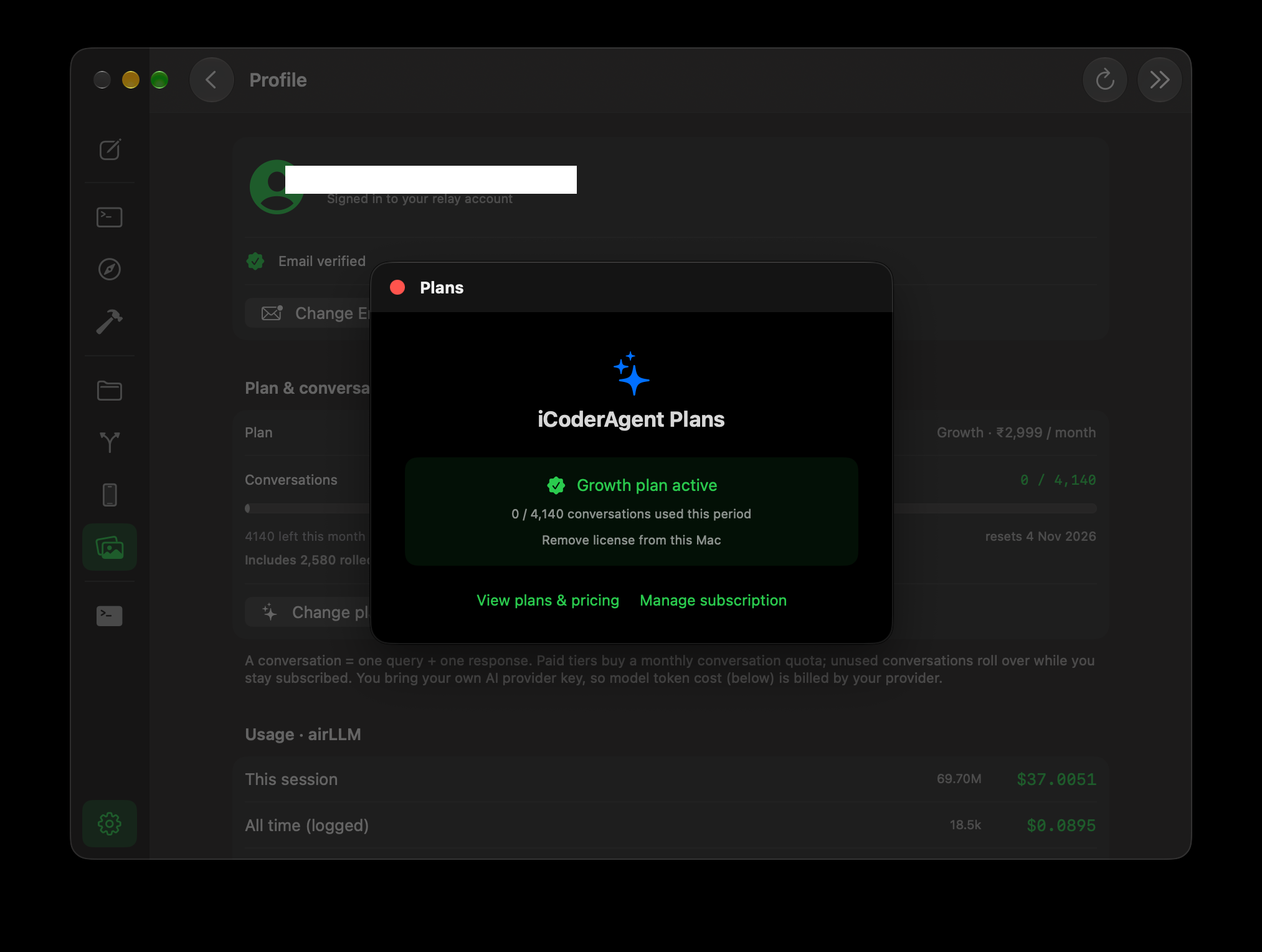
- In the app, open Settings → Profile → Change plan (the Plans sheet), paste the key and click Activate. The same sheet opens automatically when the free conversations are used up.
The key is tied to your account. The app re-verifies it with the server once a day while running, so a renewal or cancellation takes effect without reinstalling. Manage or cancel at icoderagent.com/manage.html.
The window
The layout is a VS Code-style window: a narrow rail on the left, an optional side panel next to it, and the main area.
- New conversation (⌘N while Chat is focused) — start a fresh chat; past conversations are listed and can be reopened.
- Chat — where you talk to the agent.
- Preview — renders the HTML the agent builds.
- Design — a canvas for sketching screens and flows.
- Panels — Files, Source Control, Devices (Simulator + Devices tabs) and Assets. A panel slides out next to the rail without changing the main view and closes when its icon is clicked again. Drag its edge to resize.
- Terminal — toggles the integrated terminal below the main area.
- Settings and the account menu (profile, plan, token usage this session, sign out) sit at the bottom of the rail.
Files opened from the Files panel appear as tabs in the main area and stay open while you switch between Chat, Preview and Design.
Bring your own key (BYOK)
iCoderAgent doesn't resell AI usage. You connect your own provider account, and model calls are billed by that provider directly to you. Keys and code never touch our servers, and you can use whatever model you already pay for.
Enter keys under Settings → AI Provider. Keys live in the macOS Keychain and are transmitted only to the provider you selected.
Supported providers
Switch anytime under Settings → AI Provider:
- Anthropic (Claude), OpenAI (GPT), xAI (Grok) — the primary cloud providers.
- Google Gemini, GitHub Models, Groq, Azure, OpenRouter, DeepSeek, Moonshot, Hugging Face — additional OpenAI-compatible options.
- Ollama, Apple MLX — local servers you run on this Mac (or another machine on your network). Enter the server URL in Settings; on the same Mac,
localhostworks.
Getting an API key
Every cloud provider works the same way: create an account on the provider's platform, generate a key, and paste it into Settings → AI Provider. The key is saved to your Keychain and sent only to that provider. Most platforms require a payment method or prepaid credit before the key will work — API usage is billed by the provider, separately from any chatbot subscription (ChatGPT Plus, Claude Pro, etc. do not include API access).
Anthropic (Claude)
- Sign in at console.anthropic.com.
- Add credit under Settings → Billing (prepaid; new accounts sometimes get trial credit).
- Go to Settings → API Keys → Create Key, name it (e.g. "iCoderAgent"), and copy the key — it's shown only once.
- Stuck? See the official Anthropic guide.
OpenAI (GPT)
- Sign in at platform.openai.com (the API platform — separate from ChatGPT).
- Add billing under Settings → Billing.
- Open API keys → Create new secret key and copy it — it's shown only once.
- Stuck? See the official OpenAI guide.
xAI (Grok)
- Sign in at console.x.ai.
- Add credit or billing in the console.
- Create a key under API Keys and copy it.
- Stuck? See the official xAI guide.
Google Gemini
- Sign in at aistudio.google.com with a Google account.
- Click Get API key → Create API key. A free tier exists with rate limits; enable billing on the linked Google Cloud project for higher limits.
- Stuck? See the official Google Gemini guide.
GitHub Models
- Sign in at github.com, then open Settings → Developer settings → Personal access tokens.
- Generate a fine-grained token with Models access. Free tier with rate limits, tied to your GitHub plan.
- Stuck? See the official GitHub Models guide.
Groq
- Sign in at console.groq.com.
- Create a key under API Keys. A free tier with rate limits is available.
- Stuck? See the official Groq guide.
Azure (OpenAI / AI Foundry)
- You need an Azure subscription at portal.azure.com.
- Create an Azure OpenAI (AI Foundry) resource, deploy a model, then copy the key and endpoint from Keys and Endpoint.
- Stuck? See the official Azure guide.
OpenRouter
- Sign in at openrouter.ai.
- Add credit, then create a key under Keys. One key gives access to many models across vendors.
- Stuck? See the official OpenRouter guide.
DeepSeek
- Sign in at platform.deepseek.com.
- Top up a small credit, then create a key under API Keys.
- Stuck? See the official DeepSeek guide.
Moonshot (Kimi)
- Sign in at platform.moonshot.ai.
- Create a key under API Keys in the console.
- Stuck? See the official Moonshot guide.
Hugging Face
- Sign in at huggingface.co, then open Settings → Access Tokens.
- Create a token (read scope is enough for inference). Free tier with rate limits; PRO raises them.
- Stuck? See the official Hugging Face guide.
Ollama & Apple MLX (local)
No API key needed — these are servers you run yourself. Install Ollama or MLX-LM on the Mac, start the server, and enter its URL in Settings → AI Provider. The "How to connect" links in Settings walk through it.
Key safety: treat an API key like a password. Don't share it or commit it to a repo; iCoderAgent stores it in the Keychain and never sends it anywhere except the provider you chose. If a key leaks, revoke it in the provider's console and create a new one. Most consoles also let you set a monthly spend limit — set one.
Choosing a model
Each provider offers a list of models in Settings; Fetch latest models refreshes it from the provider. You can also type a custom model ID for one that isn't listed. For coding, the strongest general models (latest Claude / GPT / Grok) give the best results; smaller or cheaper models are fine for quick edits. The same screen shows the model's price, and toggles for extended thinking, approving file changes, and Token saver.
Run a model on your own machine
Instead of a hosted provider you can point iCoderAgent at a model running on your own hardware — this Mac, or another machine with a GPU. Your prompts never leave your network and there is nothing to pay per token. The same server also serves the iPhone app over Wi-Fi, so one machine can answer both.
Three options, all connected the same way:
- Ollama — the easiest. Works on any machine.
- Apple MLX-LM — the fast path on an Apple Silicon Mac.
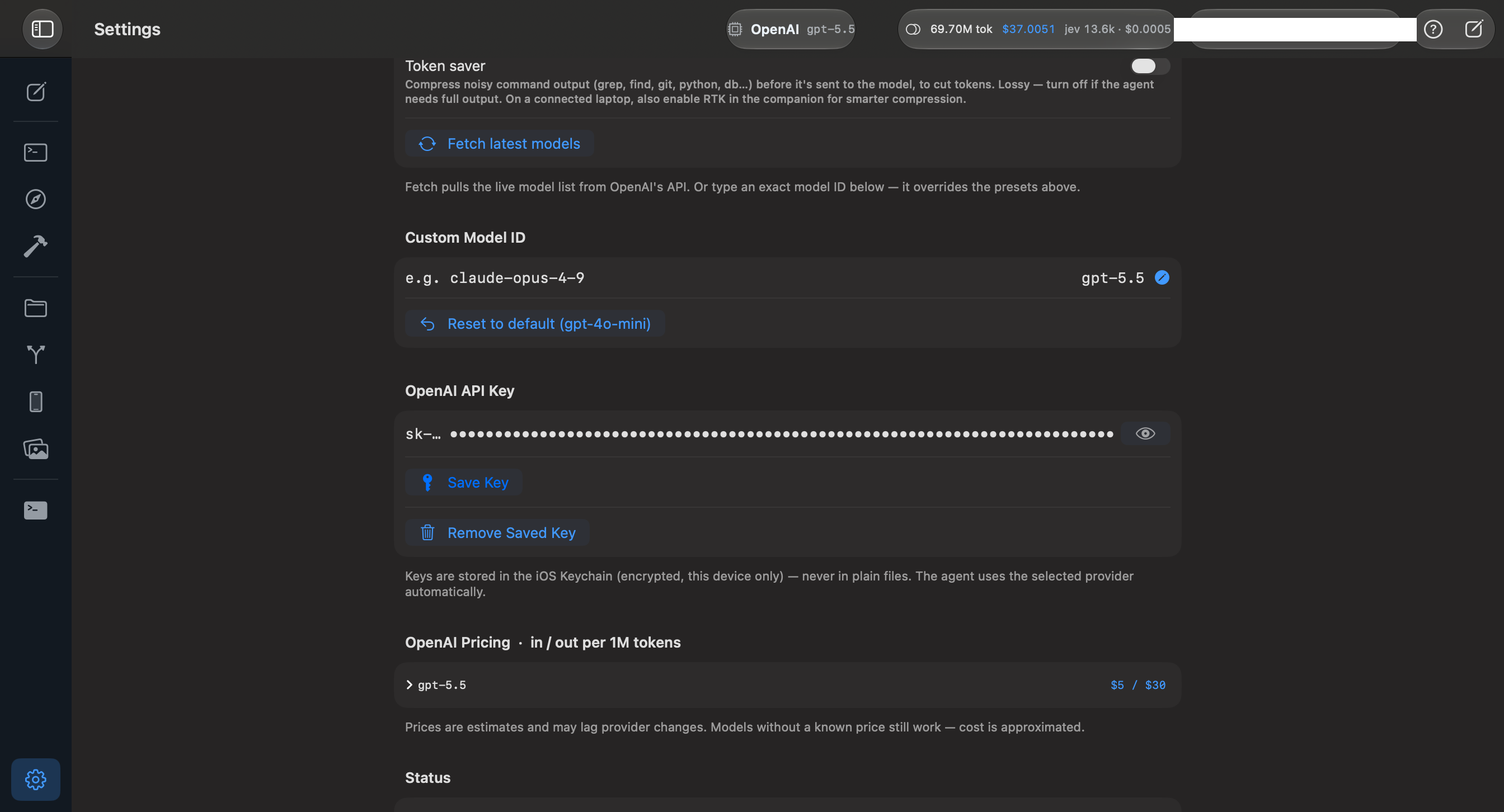
- AirLLM — runs a model far larger than your graphics card should hold, by loading one layer at a time. Slow, but it makes the impossible possible.
Pick a model with a large enough context window. The agent sends its full instructions and tool list with every message — about 7,500 tokens. A model with a smaller window cannot do agent work at all: it does not run slowly, it overflows and returns nothing useful. Look for 16k context or more; 32k is comfortable. Small models like TinyLlama (2k) will not work no matter how long you wait.
Step 1 — Install the server on your computer
Pick one.
Ollama — download it from ollama.com and install.
Apple MLX-LM (Apple Silicon only — M1 or later):
python3 -m venv ~/llm-venv
~/llm-venv/bin/pip install mlx-lm
AirLLM — needs an NVIDIA GPU with CUDA, or an Apple Silicon Mac. The server script ships with the iCoderAgent source as scripts/airllm_server.py.
python3 -m venv ~/airllm-venv
~/airllm-venv/bin/pip install airllm torch      # NVIDIA
~/airllm-venv/bin/pip install airllm mlx        # Apple Silicon
Step 2 — Download a model
You do not download models in the app — the server fetches them the first time you start it, and keeps them for next time.
Ollama downloads on demand:
ollama pull qwen2.5-coder:7bMLX-LM and AirLLM take a Hugging Face repository name and download it when the server starts. Good choices for coding:
mlx-community/Qwen2.5-Coder-7B-Instruct-4bit— 32k context, about 4.3 GB. A solid default on a Mac.meta-llama/Llama-3.1-8B-Instruct— 128k context. Needs a free Hugging Face account to accept the licence.
Allow disk space for the download, and twice that for AirLLM, which keeps a second copy split layer by layer.
Step 3 — Start the server
If the Mac app and the server are on the same machine you can leave the host alone and use 127.0.0.1. Add --host 0.0.0.0 (or OLLAMA_HOST=0.0.0.0) only when something else needs to reach it — another computer, or the iPhone app. By default these listen to the local machine only.
Ollama
OLLAMA_HOST=0.0.0.0 ollama serveApple MLX-LM
~/llm-venv/bin/python -m mlx_lm server \
  --model mlx-community/Qwen2.5-Coder-7B-Instruct-4bit \
  --host 0.0.0.0 --port 8080 \
  --prompt-cache-size 8
--prompt-cache-size is worth fifty times the speed. The agent resends the same instructions every turn. Without the cache the server re-reads all of them each time; with it, once. Measured on an M4: first reply 21 seconds, every reply after it under one second. If a local model feels unusably slow, this is almost always why.
AirLLM
~/airllm-venv/bin/python scripts/airllm_server.py \
  --model meta-llama/Llama-3.1-8B-Instruct \
  --host 0.0.0.0 --port 8800 \
  --max-tokens 256
AirLLM reloads every layer of the model for each word it writes, so expect seconds per word rather than words per second. On Apple Silicon it supports Llama-family models only. The first start is slow while it splits the model; later starts take seconds.
Step 4 — Point the Mac app at it
Open Settings, choose the provider — Ollama, Apple MLX-LM or AirLLM — and put the address in its server URL field, below the model list. On the same machine that is http://127.0.0.1:8080 for MLX-LM, http://127.0.0.1:11434 for Ollama, http://127.0.0.1:8800 for AirLLM. No API key is needed.
Ask for something small first — the opening reply is the slow one, while the model loads and reads the agent's instructions.
Step 5 — Serving the iPhone app as well
The same server answers the iOS app, which turns the phone into the keyboard while this machine does the work. Restart the server with --host 0.0.0.0 so it accepts connections from the network, then find this Mac's address:
ipconfig getifaddr en0On Linux, hostname -I. You will get something like 192.168.1.102. Check the server answers on it — this proves it is listening to the network and not just to itself:
curl http://192.168.1.102:8080/v1/modelsA list of models means you are ready. No reply means the server is not accepting network connections — go back to step 3 and check the host flag.
Then on the phone:
- Put it on the same Wi-Fi as this Mac — not mobile data, and not a guest network.
- Open Settings and choose the same provider.
- In the provider's server URL field, enter the Mac's address with the port — for example
http://192.168.1.102:8080.
Leave the Mac awake while you use it. A machine that sleeps takes the server with it.
If nothing comes back
Local models are given a long time to answer, so a server that has stopped looks the same as one thinking hard. Work through these in order:
- Is it still running? A computer that slept or restarted has stopped the server. Start it again.
- Can the computer reach it? Run the
curlfrom step 4. No reply means the server, not the network. - Using the phone, and the Mac works but it does not? Open the same address in Safari on the phone. If the Mac sees it and the phone does not, it is your network — usually a guest Wi-Fi that stops devices talking to each other.
- Replies come but the agent seems stuck? The model is probably too small to use tools properly. Try a larger one.
Projects
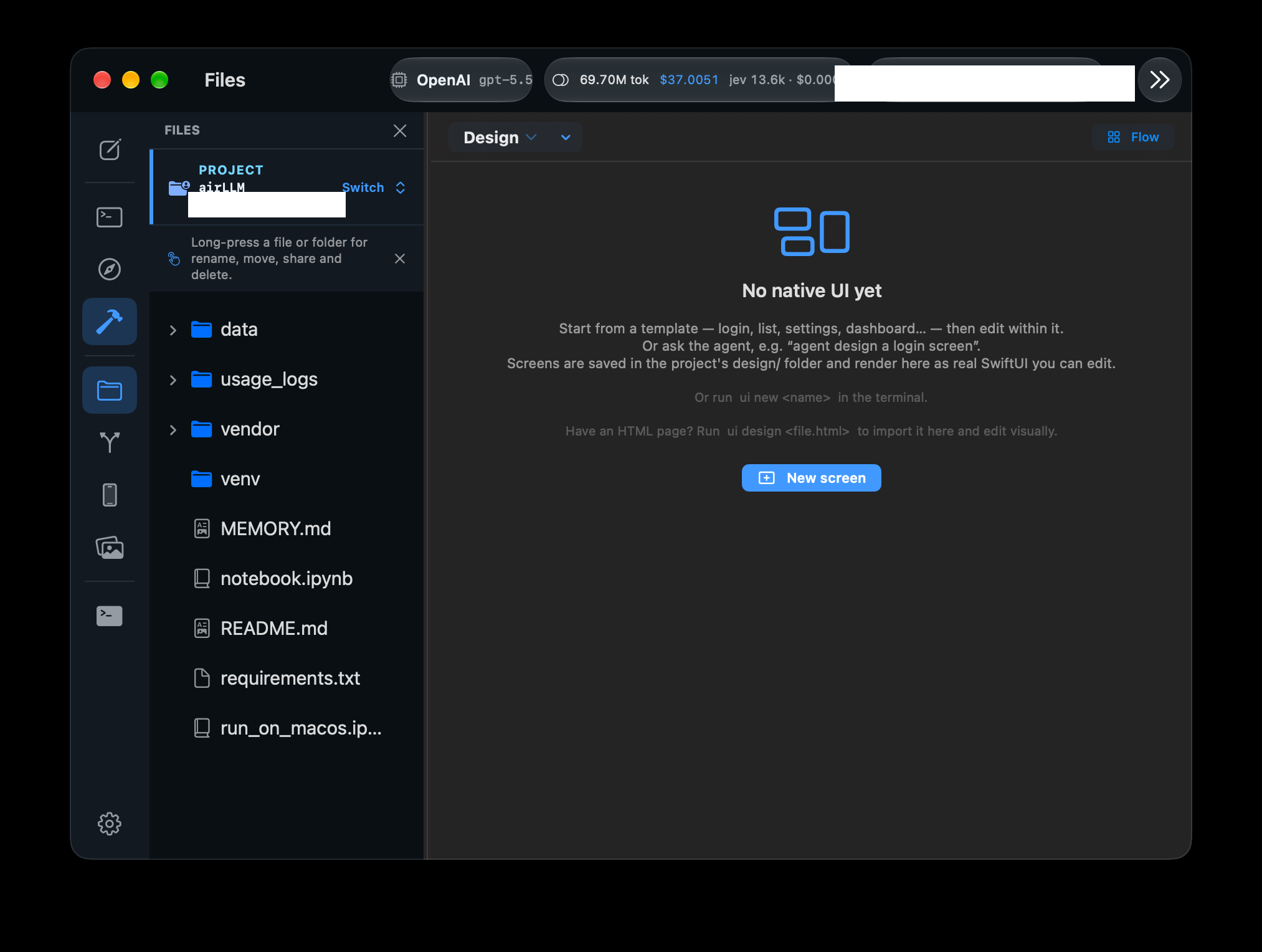
A project is a folder you choose on your Mac. The app keeps a security-scoped bookmark to it and works directly in it; nothing is copied into the app's own storage. Open or create projects from the Files panel. Its PROJECT bar menu has:
- New Project…, Open Project…
- New Folder…, New File…, Add Files… (copy files in from elsewhere), Refresh
- Close Project, Show Hidden Files
The same items are in the menu bar's File menu with shortcuts (see Keyboard shortcuts). Files open as tabs in the main area; the Assets panel lists images and other media in the project.
New Project templates
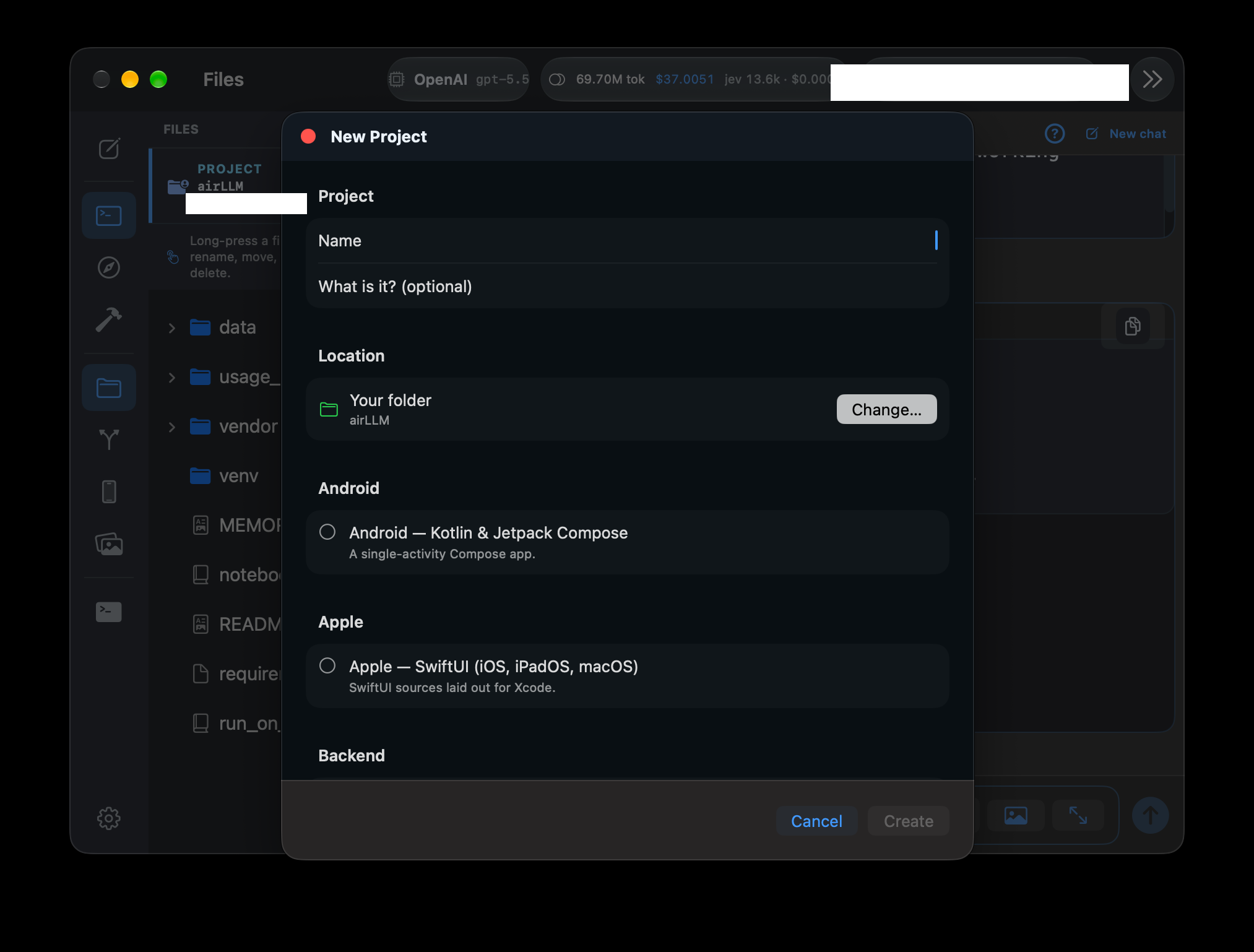
Every template runs directly on the Mac with the toolchain installed there:
- Web — HTML/CSS/JS, React (single file), React (bundled)
- Python — command-line tool, installable package
- Node.js — command-line tool, HTTP service; Bun — command-line tool
- Go and Rust — command-line tools
- C# / VB.NET — .NET console apps (and C# .NET Framework 4.8 for Windows)
- Android — Kotlin & Jetpack Compose
- Apple — SwiftUI (iOS, iPadOS, macOS)
- Machine Learning — notebook
Apple and Android templates ask for the details Xcode or Gradle would — organization id / bundle id and, for Apple, the signing team. Templates that need Xcode, .NET, Go, Rust, Node or the Android SDK say so; install the toolchain and the agent uses it.
Chat & the agent
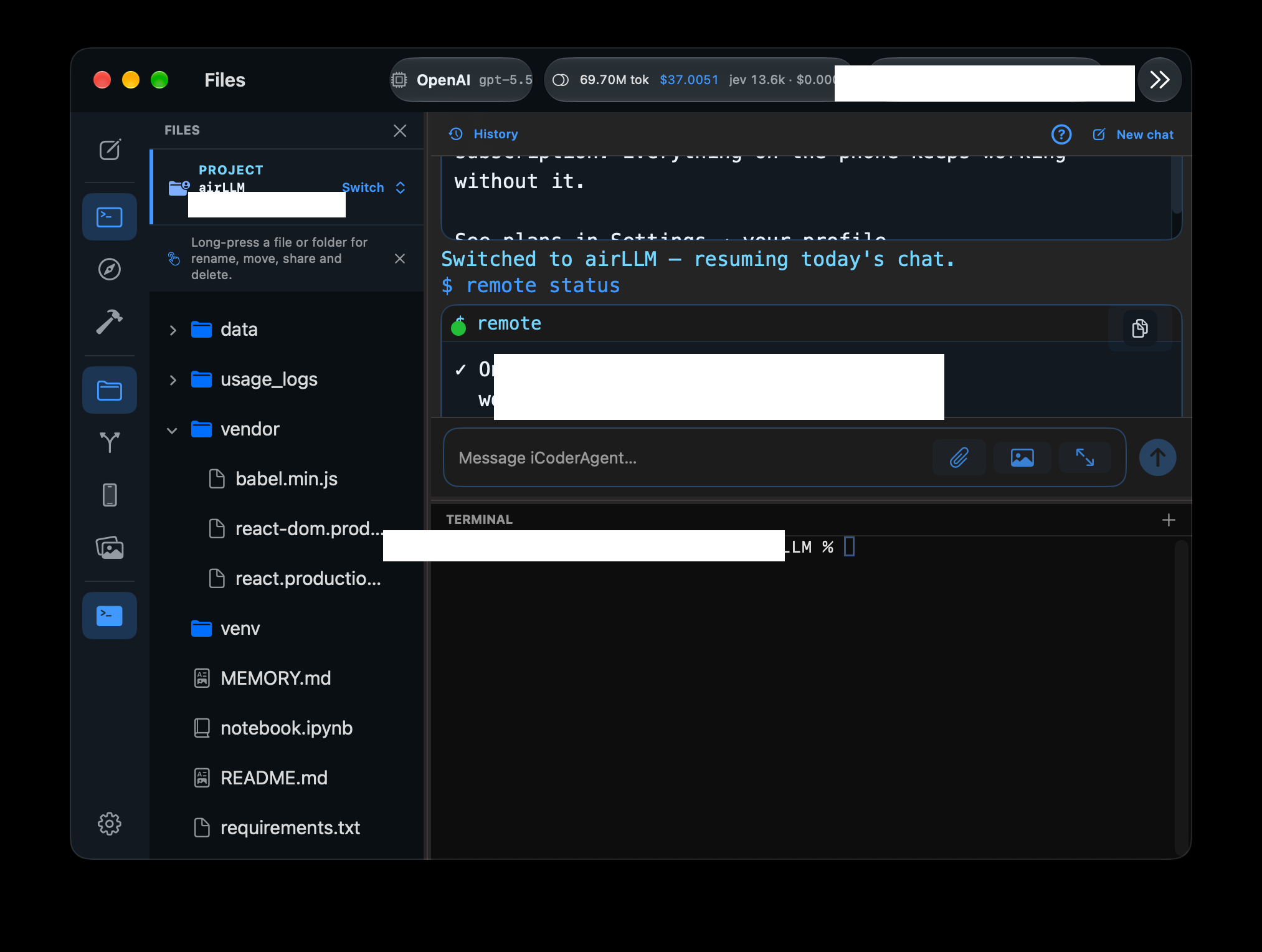
Chat is where you give the agent tasks. On the Mac the agent's run tool executes in a real zsh in the project folder, with your PATH and the toolchains you have installed, so npm test, pytest, swift build, cargo, dotnet and xcodebuild all work. Build & test tools (run_tests, get_diagnostics, debug) run locally too.
Attach files or images by dropping them on the chat. The rail's account menu shows tokens and estimated cost for the session; Settings → API Usage Report has the history. Past conversations can be reopened from the rail.
Plain shell commands typed in Chat run as shell commands; help lists everything else. For long or multi-step work see Plan mode and Loop mode.
Terminal
The integrated terminal (rail toggle) is a real login zsh (SwiftTerm, the same engine CodeEdit uses) opened in the project folder, with your rc files, aliases and PATH. Interactive programs — vim, htop, ssh, the Python REPL — work as in Terminal.app.
The agent can drive it: its terminal_run tool types a command into this terminal and reads the output, so you can watch long builds or servers live and keep interacting with them afterwards.
Simulator & Devices
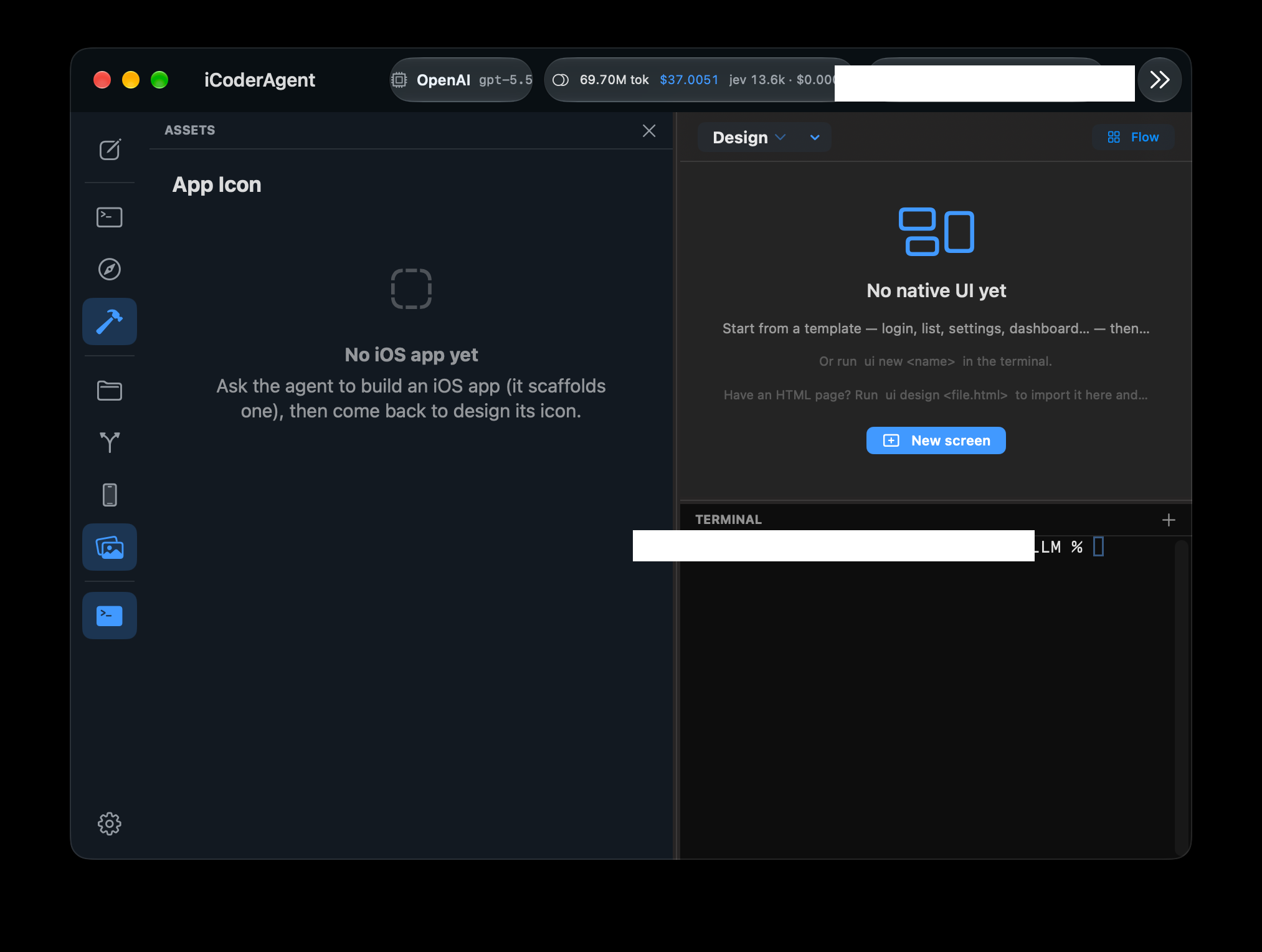
The Devices panel needs Xcode installed. It has two tabs.
Simulator
- Pick any installed simulator — iOS, watchOS, visionOS — grouped by runtime. A dot marks booted ones; Refresh list rescans.
- The live screen is shown in a device skin inside the panel; click and type on it directly, or press the Home button.
- Build & Run builds the current iOS project and launches it on the selected simulator; a log view shows build output.
- Save a screenshot to
screenshots/in the project, record video, switch light/dark appearance, Open in Simulator.app, and Boot / Shut down.
Devices
Lists iPhones connected over USB (unlocked and trusted) via xcrun devicectl. Build & Install builds the current iOS project with automatic signing, installs and launches it — no Xcode UI. Optionally enter a signing team; blank uses the project's own.
The first time a bundle id is used it has no provisioning profile. The panel detects this and shows a banner with Open in Xcode: choose your Team under Signing & Capabilities once, then Build & Install works from then on.
Source Control
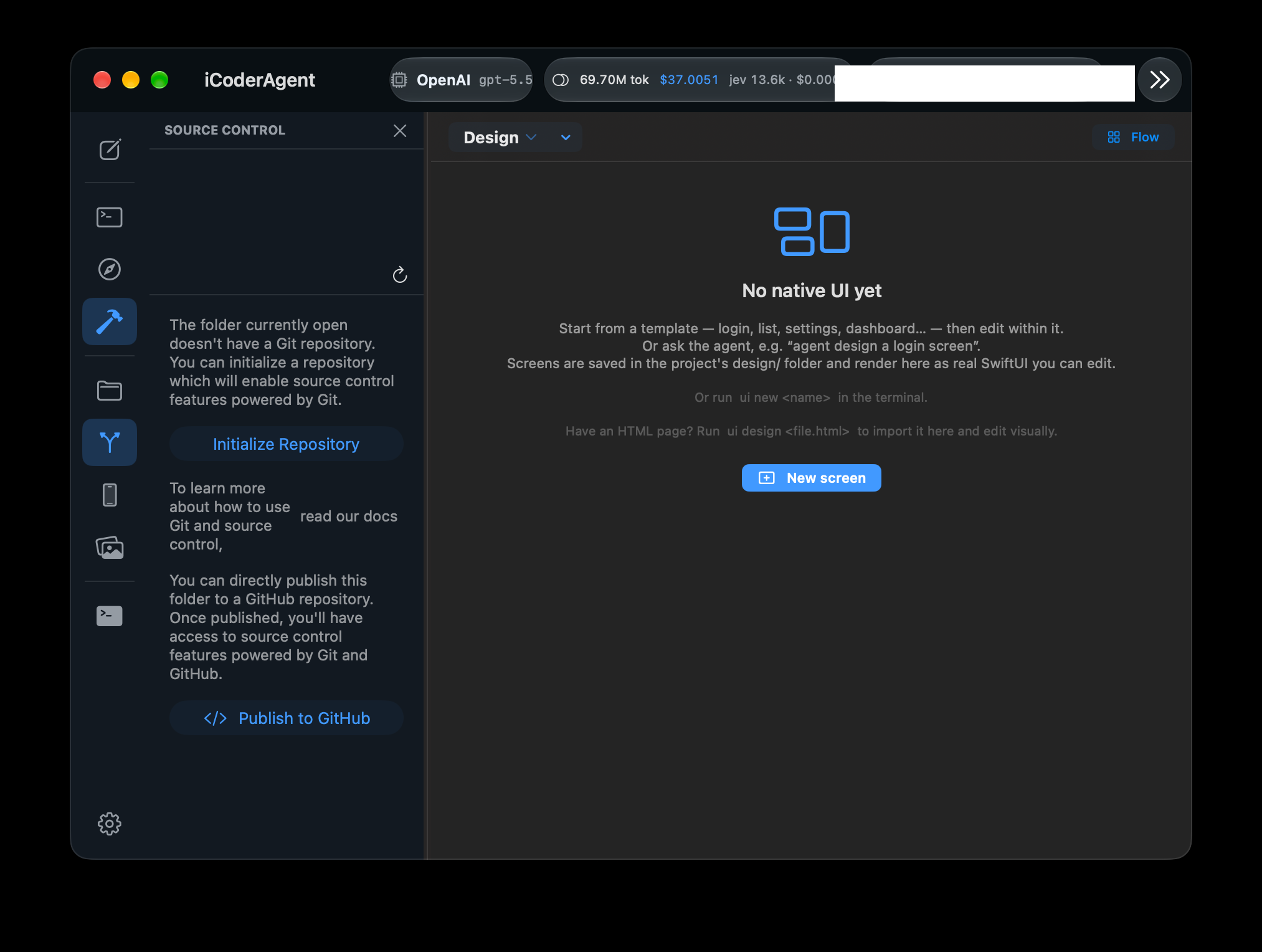
The Source Control panel is a git client for the open project: current branch, changed and staged files, stage / unstage / discard per file, Stage All, a commit message field and Commit, per-file diffs, and a commit graph. A folder without a repository gets an Initialize Repository button.
Publish to GitHub creates a private or public repository and pushes, using the GitHub CLI (brew install gh, then gh auth login). The agent uses the same repository through its git tool and commits checkpoints as it works.
Notebooks
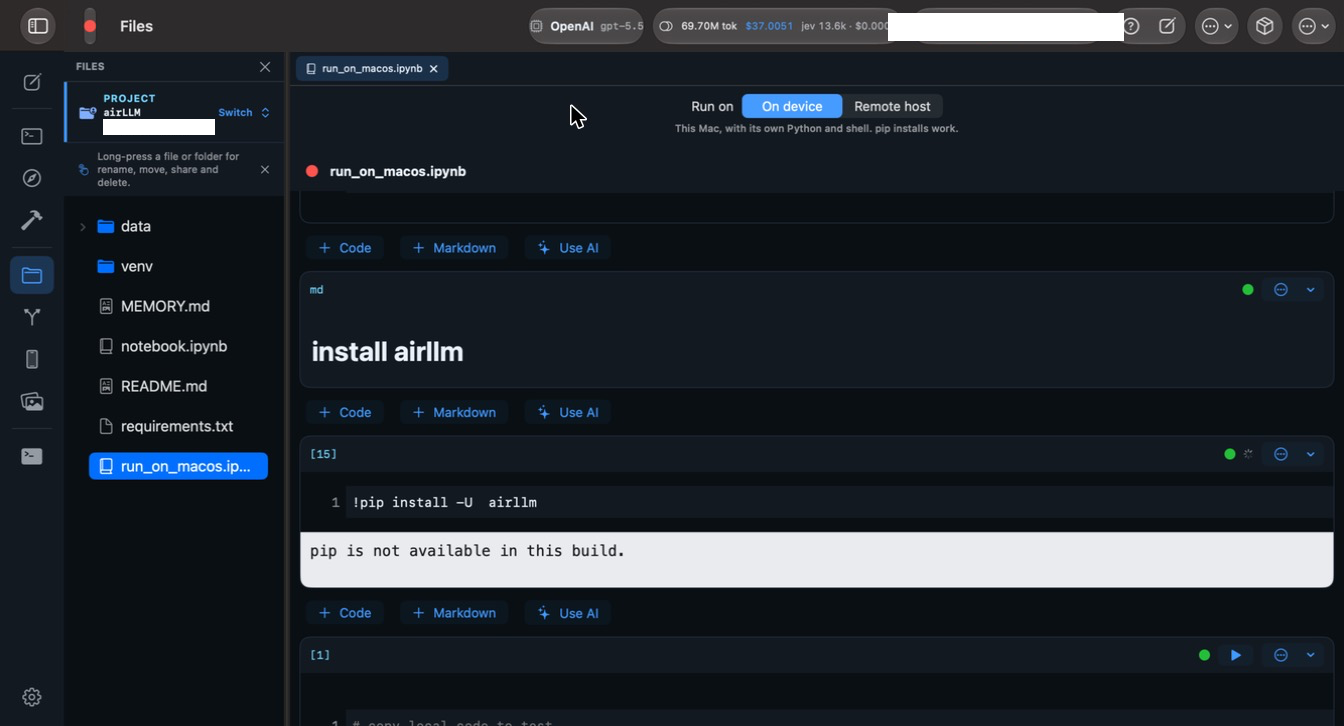
Open any .ipynb from the Files panel to edit and run it. The kernel picker offers:
- On device — this Mac's own Python and shell.
!pip install …works; packages install into the project environment (lib/pythonX.Yfor the Mac's Python), the same placepip installin the terminal puts them, so notebook and terminal see the same packages. - Remote host — runs cells on a connected Companion machine with its own Python and pip.
Output streams live while a cell runs and a Stop button interrupts it. Execution stops at the first cell that raises. The agent can create and edit notebooks like any other file.
Preview & Design
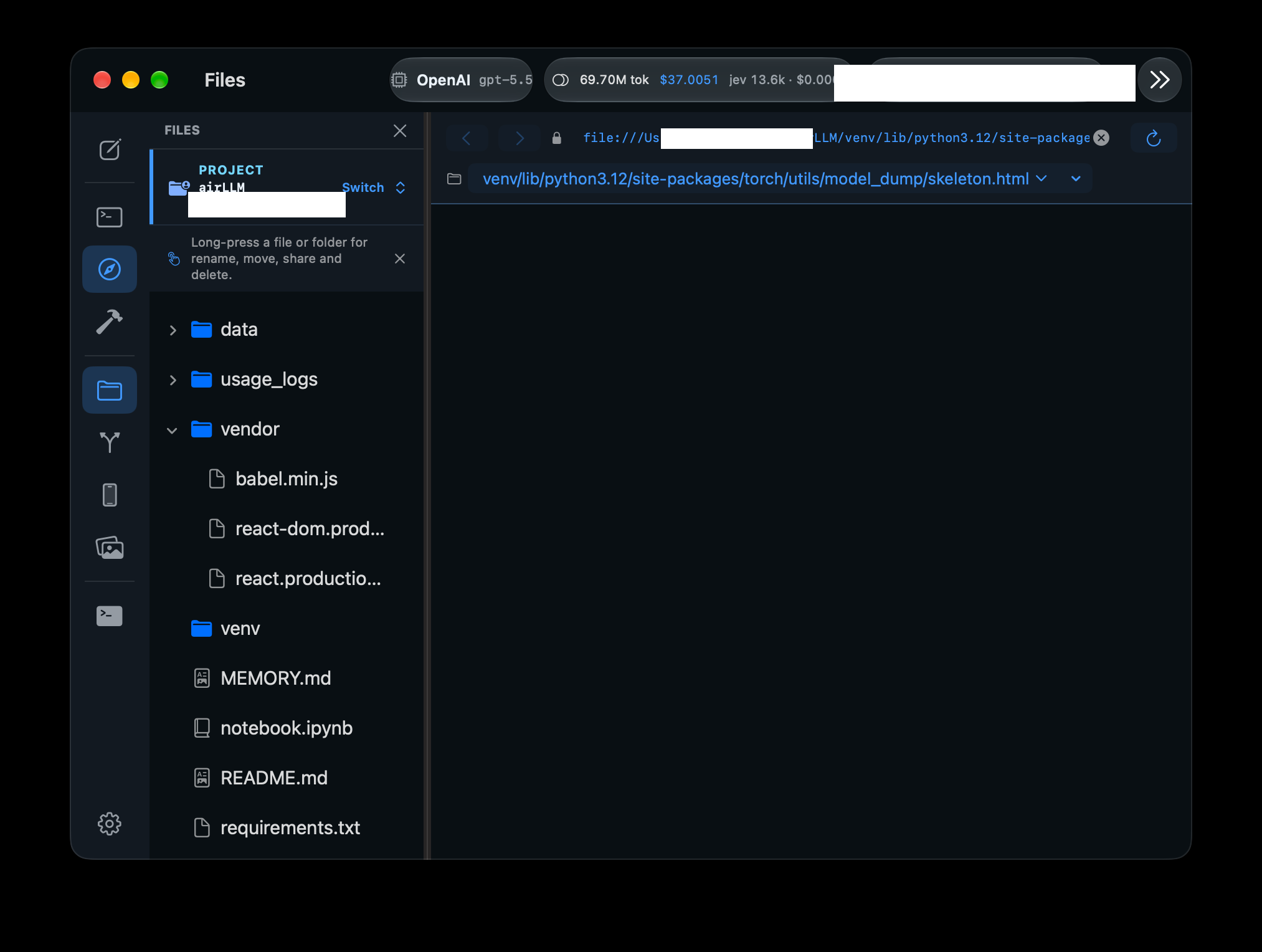
Preview renders HTML the agent builds so you can see and verify the result. When you ask for a screenshot, the agent captures the rendered page and — if the page throws a runtime error — reports the error alongside the image, so a blank screen comes with an explanation.
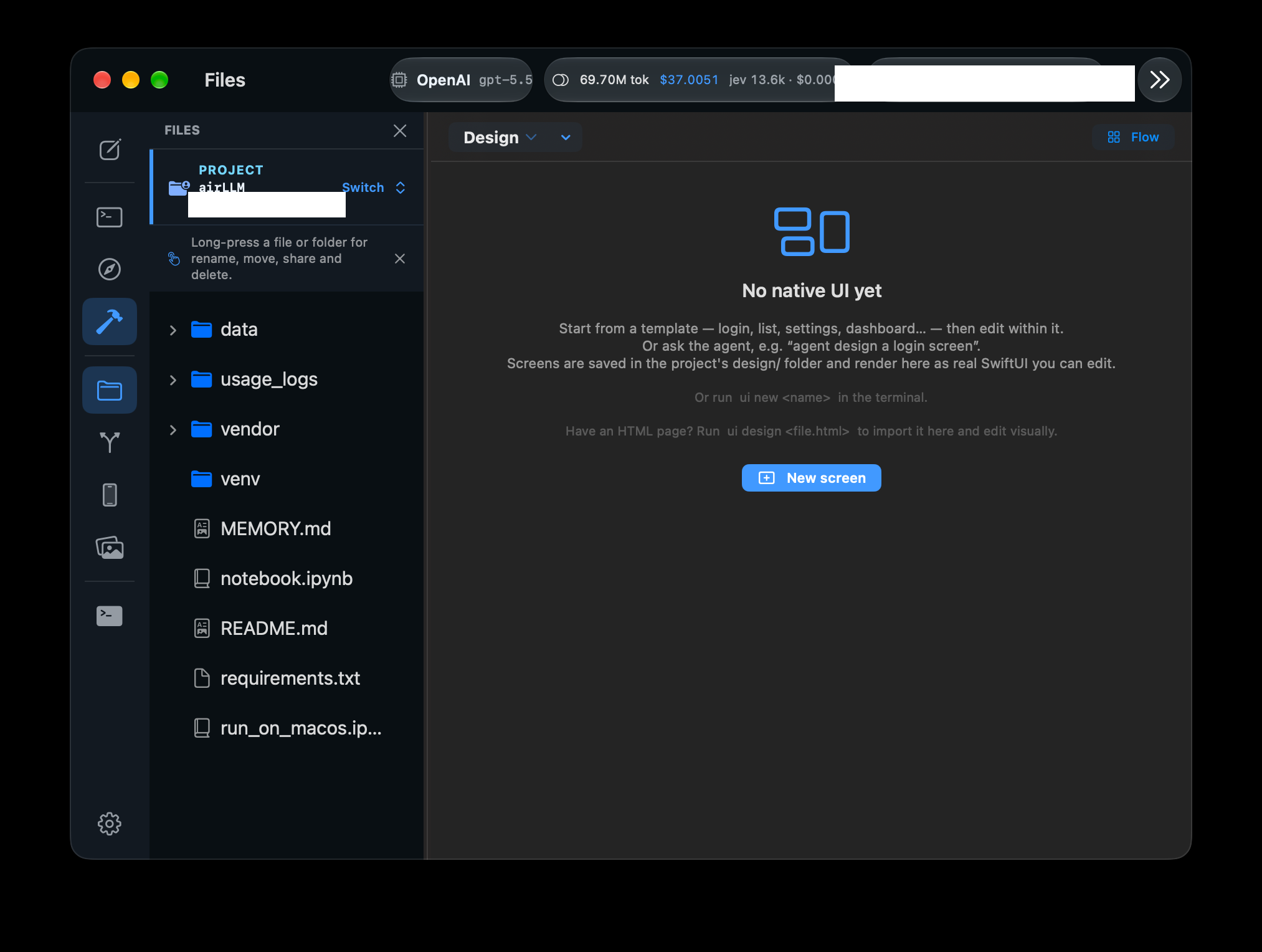
Design is a lightweight canvas for sketching screens and flows; the ui command asks the agent to design a screen there, and you can hand a design back to the agent to implement.
How the agent works
iCoderAgent runs a genuine agent loop, not a single chat reply. Each turn it can call tools — write a file, read a file, run a command, search code, take a screenshot — then read the results and decide what to do next, repeating until your task is complete. It commits checkpoints as it edits, so work isn't lost. File changes can be set to require your approval under Settings → AI Provider.
Commands
Most of the time you just describe the task. A few prefixes change how it is handled:
| Command | What it does |
|---|---|
plan <task> | Think through and present an approach before writing code. |
loop <goal> | Drive a goal autonomously to a definition of done. |
ui <screen> | Design a screen on the Design canvas. |
jev <question> | A typed yes/no, pick-one or rating answer (needs a TypeSafe key). |
/plugin …, /plugins | Manage plugin marketplaces and installed plugins. |
/crash | Diagnose the last crash with the agent. |
help | The full, always-current list with examples. |
Anything that looks like a shell command (ls, git status, npm test) runs in the project folder. Custom commands can be added under Settings → Custom Commands.
Git in the command bar
The command bar has its own git — pure Python, bundled with the app — so the same commands work on iPhone, iPad and Mac without any git installed. It reads and writes the project's .git like real git, so the Source Control panel, a terminal, and the agent all see the same repository.
git init | Start a repository (seeds .gitignore) |
git status · git diff [--staged] · git log [-n N] | Inspect changes and history |
git add [paths] · git commit -m "msg" | Stage and commit |
git branch [name] · git checkout [-b] <branch> | Branches |
git remote [-v] | List remotes, with fetch/push URLs |
git remote add <name> <url> | Add a remote (refuses a duplicate name) |
git remote remove|rm <name> | Remove a remote |
git remote rename <old> <new> | Rename a remote |
git remote set-url <name> <url> | Change a remote's URL |
git remote get-url|show <name> | Print one remote's URL |
git create-repo <name> [--private] | Create the repository on GitHub and set it as origin |
git clone <url> [dir] | Clone a repository |
git push|pull|fetch [remote] [branch] | Sync with any named remote (default origin) |
git merge <branch> [--no-ff] · git rebase <upstream> | Integrate branches (rebase --continue / --abort supported) |
Authentication
Network commands use the GitHub token from Settings → AI Model → GitHub, over HTTPS. The token is added to the request for that one call: it is never written into .git/config and never appears in command output. A URL that already contains credentials is stored without them.
- Fine-grained token (
github_pat_…): select the repositories, then grant Contents → Read and write. Without Contents, GitHub answers the token's API calls with 200 but refusesclone/fetch/pushwith a 403. - Classic token (
ghp_…): thereposcope (public_repois enough for public repositories).
On the Mac, a git push the agent runs through its shell tool uses your system git and its own credential helper, not this token. Type help git for the always-current list with examples.
Plan mode
Use plan <task> to have the agent think through an approach and lay out the steps before writing any code. Good for larger changes where you want to review the plan first.
Loop mode (autonomous)
Use loop <goal> to set a goal once and let the agent drive it to completion — it discovers what's needed, plans, builds, verifies against a definition of done, and iterates on any gaps until it passes or a cycle cap is reached. Best for an end-to-end goal you want driven without step-by-step prompting.
Sub-agents & pipelines
The agent can delegate parts of a task to sub-agents, run several independent subtasks in parallel, or run a plan → build → review pipeline — to work faster and check its own output. These run automatically when the agent decides they help; you don't need to manage them. Specialist roles can be edited under Settings → Agent Roles.
Token saver
iCoderAgent compacts noisy tool output on the Mac before it reaches the model, so you spend fewer tokens per task without losing the information the agent needs. It's on by default (Settings → AI Provider).
Typed answers (Jev)
Not every question needs an essay. With an optional TypeSafe (Jev) key (from typesafe.ai, pasted into Settings → TypeSafe (Jev)), short questions with a shape — yes/no, pick-one, rate-this — are answered by a decision model with a probability attached, for a fraction of a language-model call.
jev is python dynamically typed→ Yes (93% true)jev pick swift|kotlin|dart :: which is native on iOS?→ swift · 88%jev rate low|medium|high :: how risky is a force push?→ high · 92%
It also backs three of the agent's own decisions: which specialist role fits a subtask, whether a command is about to destroy something, and whether finished work actually works. It is an optimisation, never a dependency — without a key (or if Jev is unreachable) the app behaves exactly as before. Full details: Typed answers with Jev.
Spec-driven building (SDD)
When a project starts, iCoderAgent asks once which way to build it — vibe coding (just talk, the agent builds) or spec-driven — and records the choice in the project folder. A project that already contains a goal-spec.md is treated as spec-driven. In an SDD project, no code is written without a specification:
- The spec comes from you. A form interview per specification document — not a stream of free-text questions, and not silent defaults invented by the model.
[NEEDS CLARIFICATION: …]— anything unsettled goes into the spec as a question. Code stays blocked while any marker remains (the refusal quotes the open questions back); writing specs and design mockups stays allowed.tasks.md— required after the specs, before code: numbered tasks, each citing the requirement it serves. A task citing nothing is scope creep, caught at the cheapest moment.- Converge, don't check once —
done_listreports CONVERGED / NOT CONVERGED against the spec's "Done when" items; the agent fixes and re-verifies until everything passes.
The flow is deliberate friction: it keeps your decisions distinguishable from the model's. For quick experiments, pick vibe coding — the choice is per-project and made up front.
CognitiveSkills
Skills are reusable Markdown playbooks the agent can load on demand — a documented procedure for something you do often (a project's conventions, a review checklist, a build recipe). Manage them under Settings → CognitiveSkills. The agent advertises each skill's name and description and pulls in the full text only when it's relevant.
Plugins & marketplaces
Plugins are skills, sub-agent roles and hooks published on GitHub — the same layout Claude Code uses (skills/<name>/SKILL.md, .claude/skills/, or a .claude-plugin/plugin.json that declares where they live). You can install them straight into a project.
Installing
- From a repo: Settings → Plugins → Install from GitHub, enter
owner/repo. - From a marketplace (a repo with
.claude-plugin/marketplace.json), in Chat:/plugin marketplace add nextlevelbuilder/ui-ux-pro-max-skill uupm /plugin install ui-ux-pro-max@uupm/plugin marketplace listshows what you've registered;/pluginssummarises everything installed.
Either way you get a preview first: every skill, agent and hook the repo offers, with a checkbox, the folder it will be written to, and — for folder skills — how many support files come with it. Anything that would overwrite one of your own skills is unchecked by default. You must acknowledge that third-party text will be read by the agent before Install Selected is enabled.
What gets installed
- Each skill becomes
skills/<name>.mdin the project, with a provenance footer (repo, commit, date). - A folder skill's scripts, data and references are copied to
skills/<name>/(limits: 300 files, 2 MB per file, 25 MB per skill). - Sub-agent roles go to the roles store; prompt-style hooks to Hooks. Executable hook scripts are never imported.
- A manifest is written to
.icoder/plugins/<owner>-<repo>.jsonlisting what was installed, skipped or excluded.
How the agent uses them
Nothing runs at install time. Every turn, the agent sees only each skill's name and one-line description. When a request matches, it calls use_skill to load the full playbook and follows it — including running the skill's own scripts with python skills/<name>/scripts/… via its shell tool. Small local models may not pick a skill up on their own; say "use the ui-ux-pro-max skill" to force it. Skills are per project.
MCP servers
iCoderAgent supports the Model Context Protocol (MCP), an open standard for giving an agent extra tools (GitHub, Linear, docs, hosted tool servers, and more). Add servers under Settings → Connections (MCP):
- Remote (HTTP) servers are called directly.
- Local (stdio) servers are launched on this Mac (for example
npxoruvxservers). - Browse Community Servers searches the public MCP registry — you always review exactly what's being added first.
Each server's tools appear to the agent as mcp__<alias>__<tool>.
Community MCP servers are not vetted by iCoderAgent. A local (stdio) server runs code on your Mac — only add servers from publishers you trust.
Self-authored tools
When it hits a repeated need the built-in tools don't cover, the agent can write a new tool for itself — but never silently. It shows you the exact code and waits for your approval before the tool is saved and becomes callable. Approved tools are scoped to that project and can be removed anytime.
Security scanning
Built in, nothing to set up: every file the agent writes is checked as it is written. A live API key in source, a SQL query built by string formatting, credentials over http://, a logged password — the agent is warned immediately and fixes it on the spot. It costs no tokens, needs no account, and warns rather than blocks.
Deeper scanning with Snyk: Snyk publishes an MCP server, so it plugs straight into iCoderAgent as a local MCP server on this Mac — dependency CVEs, code analysis and more, on a free Snyk account. Setup steps: Security scanning.
Agent tool reference
The agent chooses tools automatically — you never call these directly — but it helps to know what it can do. Type help for the full, always-current list.
write_file / str_replace | Create and edit files |
read_file / list_files | Read the project |
grep / find / find_definition | Search code & symbols |
run / run_tests | Run commands & tests in the project's zsh |
terminal_run | Run in the integrated terminal you can watch |
get_diagnostics | Build / lint errors |
debug | Scripted pdb / lldb / node |
screenshot / preview_js | See & verify the UI |
git | Version control |
db | Run SQL |
web_search / web_answer | Look things up online |
use_skill | Load a CognitiveSkill |
task / pipeline / loop | Delegate & orchestrate |
ssh_run | Run on a registered SSH host |
propose_tool | Author a new tool (with your approval) |
Settings
- Appearance — themes and fonts for the app and terminal.
- AI Provider — provider, API key, model, custom model ID, extended thinking, approve file changes, Token saver.
- Remote — optional. Pair a Companion running on another machine (or register SSH hosts) when you want the agent to run commands there instead of on this Mac. Not needed for local work.
- Connections (MCP) — add remote or local MCP servers; browse the community registry.
- Plugins, CognitiveSkills, Agent Roles, Hooks, Custom Commands — extend the agent.
- TypeSafe (Jev) — optional key for typed answers.
- Browser Guardrails — what the agent may do when it drives a browser.
- API Usage Report — tokens and cost by day and model.
- General → Software Update — check for a new DMG; Companion version and downloads.
- Logs — the app's own log, for support.
- Profile — account, plan, Change plan (license key), sign out, delete account.
Keyboard shortcuts
| Shortcut | Action |
|---|---|
| ⇧⌘N | File → New Project… |
| ⌘O | File → Open Project… |
| ⌥⌘N | File → New Folder… |
| ⌘N | File → New File… (New Conversation when Chat is focused) |
| ⇧⌘I | File → Add Files… |
| ⌘R | File → Refresh |
| ⇧⌘W | File → Close Project |
| ⇧⌘. | File → Show Hidden Files |
| ⌘? | Help → iCoderAgent Help (commands & tools) |
| ⌘, | Settings |
The Help menu also links to the Website, this Documentation, the Privacy Policy and the Terms of Use.
Troubleshooting
macOS says the app "can't be opened"
The app is notarized, so this should not happen. If it does, right-click the app in Applications and choose Open, or re-download the DMG — a partial download fails the signature check.
License key not accepted
Check the key against the email (copy it, don't retype it), make sure the Mac is online, and sign in with the account the plan was bought for — keys are per account. Still stuck? Email support with the order email address.
Build & Run / Build & Install is disabled
They need Xcode installed (not only the command-line tools) and an iOS project in the open folder. For a real device, Xcode also needs a signing identity; the panel offers Open in Xcode the first time a bundle id needs a profile.
The simulator list is empty
Install a simulator runtime in Xcode → Settings → Components, then Refresh list.
A notebook cell or pip install runs for a long time
Output streams live — watch it for progress. Use Stop to interrupt the cell. Installs go into the project environment, so the first install of a large package takes as long as it would in Terminal.
Software Update shows nothing
It checks icoderagent.com; make sure the Mac is online and try again. You can always download the latest DMG from the Install link.
The agent hit the paywall
Every account gets 10 free conversations. After that, buy a plan and activate the license key (see Account & plans).
If the app crashes
On the next launch the app asks Diagnose with AI? Nothing happens unless you say yes. The agent reads the crash details (keys, emails and paths removed), explains the likely cause, and — only if it looks like an app bug and only after you review the draft — sends a report. Run it any time with /crash.
Privacy & support
API keys are stored in the macOS Keychain and sent only to the provider you chose. Projects, chat history and usage logs stay on your Mac. There are no advertising SDKs and no third-party analytics in the app. Details: Security, Data use, Privacy policy.
Support: support@aidigiapps.com, or the Discord.